Projects and git
A project is a folder that a window is about. Its files stay in the sidebar, new tabs start in it, and Next Term brings it back the next time you launch. The sidebar is also where you see, at a glance, what your agents have changed.
Projects
Section titled “Projects”- Open a project: Shell › Open Project… (⌘O) and choose a folder. Agents can open projects too, through MCP. From another terminal, run
nxtrm .(see The nxtrm command). You can also drop a folder on Next Term’s Dock icon, or runopen -a "Next Term" ~/Code/app. - New tabs open in the project by default. You can still
cdanywhere. - Reopen at launch: Next Term reopens the project windows that were open when you quit. On the very first launch it asks for a folder.
- Open Recent (in the Shell menu) lists your recent projects, with Clear Menu. The Dock icon’s menu lists them too, with New Window.
- Close Project (in the Shell menu) closes the window, asking first if something is still running in it. When the last project closes, or the last window goes with its last tab, the Welcome window appears. Open it any time from Window › Welcome to Next Term.
The Welcome window and agent sessions
Section titled “The Welcome window and agent sessions”The Welcome window lists your projects on the left, with a search field, each project’s branch, and which ones are open. Choose one and the right side shows every conversation Claude Code, Codex and Command Code kept for it, newest first, including the ones started in its subfolders: the title (in bold when you named it), the agent, when, the branch and the model, and a mark when an agent has it open right now. Filter by agent at the top.
- Resume runs the agent’s own resume command (
claude --resume …,codex resume …) in a new tab, in the folder the session was started in. - Fork continues a copy and leaves the original as it was: the safe choice while the session is open in another terminal.
- In a project window, Shell › Resume Agent Session… (⌥⌘O) shows the same list as a panel: type to filter, ↩ resumes, ⌘↩ forks.
Next Term reads only titles, dates, branches and models from each agent’s own files, never whole conversations, removes anything that looks like a secret from titles, and writes nothing. Claude Code deletes conversations after 30 days unless you change its cleanupPeriodDays setting.
Where a project opens
Section titled “Where a project opens”A window nobody has used yet simply becomes the project’s window. Otherwise Next Term asks whether to open the project in a New Window or in This Window (in place of its tabs), with Remember my choice. Change the choice later in Shell › Open Projects In: Ask Each Time, This Window or New Window. Replacing tabs that are still running something asks first and names what would stop.
A window without a project is a plain terminal window. Its sidebar follows the active tab: the tab’s git work tree, or its folder outside one. A remote tab’s folder is on its server, so the sidebar stays on your Mac’s files, and a line under its header says “Files on this Mac”.
The project sidebar
Section titled “The project sidebar”It follows the file you are editing. Open a file with ⌘P, a search result or a link, or switch editor tabs, and the sidebar opens its folders and selects it, while the keyboard stays in the editor. The scope button at the right of the editor’s tabs (View › Show File in Project Sidebar) does it on demand, and brings the sidebar back if it was hidden.
Toggle it with ⌘B (View › Hide Project Sidebar). Put it on the left or the right with the sidebar’s ⋯ button or View › Project Sidebar on the Right, and drag its edge to resize it.
- It is live. Files your agents create, change or delete show up on their own, and commits and checkouts refresh the git state.
- It stays fast on big projects. Folders are read in the background, and a folder too big to list in full ends with “… 12,345 more items”.
- It remembers. Switching between tabs in different projects keeps what you had expanded and where you had scrolled.
- Hover a row for its full path, git state and line counts.
Git at a glance
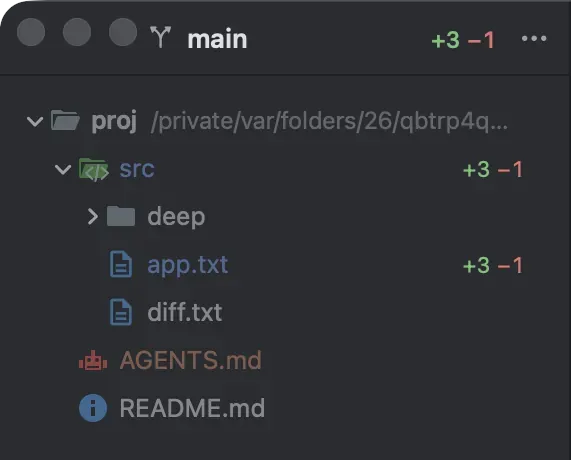
Section titled “Git at a glance”Colours show each file’s state, and a folder takes the colour of what changed inside it:
| Colour | State |
|---|---|
| Blue | Modified or renamed (a folder that lost a file, too) |
| Green | Added |
| Orange | Untracked |
| Red | Conflicted |
| Olive | Ignored |
| Dimmed | Unchanged files and folders whose names start with a dot |
| Red, struck through | Deleted, not yet committed |
Line counts sit at the right of each row, like a pull request: +12 −3 for the lines added and removed in a file, or in everything below a folder.
Deleted files keep their rows until the deletion is committed: struck through, where they were, with the lines they had (−10). A folder’s count always adds up to the rows inside it, and a folder deleted whole opens to show what was in it. Double-click a deleted file (or press ⌥⌘G) to see what was removed.
The header shows the branch and the total lines added and removed: main +41 −10. Hover it for the full story, such as “Branch main, tracking origin/main: 2 ahead, 1 behind. 3 modified, 1 added, 2 untracked.”
When the upstream has commits your branch doesn’t, a blue button with git’s commit mark says how many: Pull 152. Click it to pull them (the same as Update Project). When your branch has commits the upstream doesn’t, it says Push 3; when both have changed, it shows both counts, ↓152 ↑3, and a click asks whether to rebase or merge. When room is short, the header’s line counts make way first (they stay in its tooltip and on the rows), then the branch icon before the name, and only then does the button shorten to ↓152. The commit counts are as of the last fetch, and the button’s tooltip says when that was. Next Term fetches by itself every 10 minutes, so new commits on the remote show up without a click (see Background fetch). While Next Term fetches, pulls or pushes, the mark turns into a spinning sync arrow. A background fetch only spins a button that is already there: it never makes one appear.
The sidebar reads git with --no-optional-locks, so it never holds the index lock while your own git commands, or your agents’, are running. To see a file’s changes in full, press ⌥⌘G: see Side-by-side diffs.
Background fetch
Section titled “Background fetch”Next Term fetches the repositories open in its windows by itself, so Pull 3 appears when someone pushes, without a click.
- When: every 10 minutes while a window for the project is open and Next Term is the app in front, and when you open the branch popup if the last fetch is over 5 minutes old. The popup shows at once, and its counts update when the fetch ends.
- What it runs:
git fetch --no-write-fetch-head --no-auto-maintenance --no-recurse-submodules <remote>, once for each remote that one of your local branches tracks, with--porcelaintoo when your git is 2.41 or later. Like anygit fetch, it updates the remote-tracking branches (origin/main) and brings the tags that come with them. It never touches your own branches or files, and neverFETCH_HEAD, so agit pullrunning in a tab at the same moment still merges what it fetched itself. Submodules are not fetched. - It waits its turn, and gives way. It runs after any git command Next Term is running for you in that repository, never beside it, and it skips a round while another fetch or pull runs there, Next Term’s or one you typed in a tab. If you start a git command from Next Term while a background fetch is still running, the fetch stops and yours runs at once. A slow remote never keeps you waiting.
- It never asks for anything. When git needs a password, a key passphrase or a new host key, the fetch fails quietly and background fetch leaves that remote alone until a fetch you start works (or until Next Term restarts): Fetch in the branch popup, Update Project, or
git fetchin a terminal (in any of the repository’s worktrees). The repository’s other remotes go on as before. - It pauses in Low Power Mode, on a network macOS marks as expensive (a phone’s hotspot) or in Low Data Mode, and when you are offline.
- The setting: Settings › Editor › Git › Fetch in the background: Every 5 minutes, Every 10 minutes (the default), Every 30 minutes, Only when opening the branch popup, or Off.
The sidebar’s “Last fetched” counts these fetches too, although they leave FETCH_HEAD alone. Git › Git Commands lists them only when Show background fetches is on.
Branches
Section titled “Branches”Click the branch name at the top of the sidebar, or press ⌥⌘B (Git › Branches…). One search covers branches and actions: type a few letters of either.
- Actions come first: Update Project (with how many commits are waiting,
↓3), Commit… (with your uncommitted+/−), Push… (↑2, or Publish for a new branch), New Branch…, Checkout Tag or Revision… and Git Log. The ⟳ button (⌘R) fetches. Opening the popup fetches too when the last fetch is over 5 minutes old, and the counts update in place. - Recent: the last branches this folder was on, including switches made in a terminal or by an agent.
- Local: the current branch first, then folders by prefix (
feat/,fix/), and Agent branches, where branches agents make (claude/…,codex/…,worktree-…) stay out of your way. Each shows↓and↑against its upstream,gonewhen the upstream was deleted, and the worktree it is checked out in. - Worktrees and Remote, when there are any.
↩ checks the branch out; →, the › or a right-click opens everything else: New Branch from Here, Show History (the Git Log of that branch), Compare with “main” and Show Diff with Working Tree (see Compare a branch), Rebase onto, Merge into, Push, Rename…, Delete…, Copy Name. Typing a name that doesn’t exist offers New Branch with it, and a tag or commit offers to check it out.
Nothing is lost, and nothing happens behind an agent’s back:
- If an agent is working in the folder, Next Term asks before anything that changes its files.
- If your uncommitted changes would be overwritten, it offers Stash, Switch and Reapply. If they don’t fit on the other branch, they stay in that stash, named “Next Term: switching from … to …”.
- Delete shows the commit the branch was at, with Undo. A branch with unmerged commits lists them first.
- Force push is only offered after a push is refused, lists the commits it would discard, and only replaces exactly what you saw. Next Term refuses it for
main,master,release/*, and the default branch oforiginand of the remote you push to, as<remote>/HEADnames it. A clone setsorigin/HEAD, andgit remote set-head <remote> --autosets it for any remote; when it isn’t set, the force push prompt says Next Term can’t tell. - Conflicts stop where you can see them: Continue, Skip and Abort appear in the popup, and Ask Agent to Resolve writes the request in your agent’s tab for you to send.
Commit… shows exactly what goes in (what you staged, or every change, with new files marked and anything that looks like a secret or is over 5 MB called out), with Amend last commit, Commit and Push, and Let Agent Commit. The notice after a commit has Undo for 30 seconds, or until another notice takes its place: the branch goes back to where it was before that commit, with its changes staged (after Amend, back to the commit it replaced). Undo is refused once a remote has the commit, or once HEAD has moved on from it (an agent committed after you, or a checkout). Commit and Push shows no Undo, and neither does a repository’s first commit.
Every git command Next Term runs for you is in Git › Git Commands, exactly as it would be typed (the commit history is the Git Log); background fetches too, with Show background fetches on. Next Term never waits on a password prompt: when git needs your password, a key passphrase or a new host key, it says so and opens a terminal tab with the command ready.
Compare a branch
Section titled “Compare a branch”Two items in a branch’s menu, local or remote, open a tab:
- Compare with “main” (the branch you are on, or HEAD when detached) lists the commits only on that branch, then the commits only on yours, newest first, with how many in each heading (up to 500 are listed a side). A commit marked
=has the same change on the other side, such as a cherry-pick. Below them are the files the branch changed since the two parted (when they have merged each other, from the commit git picks, asgit diff main...feat/xdoes). Double-click a commit to see it in the Git Log, or a file for its diff, in a tab titled likeapp.txt @ feat/x. - Show Diff with Working Tree lists the files on disk that differ from that branch. Double-click one for its diff side by side, the branch’s version on the left and yours on the right, in a tab titled like
app.txt ↔ feat/x. Files git doesn’t track aren’t compared.
Right-click a commit for Show in Git Log and Copy Hash, or a file for Show Diff and Copy Path. Both tabs only read, and read again when a branch moves (yours or an agent’s) or, for the working tree, when a file changes.
Git Log
Section titled “Git Log”Git › Git Log (⌥⌘L) opens the repository’s commit history in an editor tab, as a graph. You can also open it from the branch popup (Git Log), or for one branch with Show History in that branch’s menu.
- The commits, newest first, each listed after the commits made on top of it. Each line of history has a lane and a colour of its own: a dot is a commit, a ring is a merge, and a circled dot is where HEAD is. Past 20 lanes side by side, the rest share one more column, where their commits are dim rings with no line between them. Next to the subject are its branches and tags (the branch you are on is filled in), then the author and the date (“3 hours ago” within a week). The first 1,000 commits load at once, and more as you scroll.
- Branches and tags, on the left: All Branches, HEAD, Local (in folders by prefix, agents’ branches together), Remote and Tags. Select one to see only its history. The field above narrows the list.
- The selected commit, on the right: the whole message, the author and committer with dates, the hash (with Copy), the parents (click one to go to it), its branches and tags, and the files it changed, with
+/−for each (in a partial clone, without the counts, rather than downloading the files; in a clone without trees, git downloads the commit’s trees, never the files in them). A merge is compared with its first parent. Double-click a file for its diff in that commit, side by side, in a tab titled likeapp.txt @ 4cc062d.
Filters, above the commits:
| Filter | What it does |
|---|---|
| Text or hash | Commits whose message contains the text, in any case. Turn on .* for a regular expression. A hash (6 characters or more) shows that commit. |
| Branch | All branches, HEAD, or one branch or tag. |
| Author | A name from the list, that person only (Me is your user.name), or with Other… part of a name or an email address. |
| Date | The last 24 hours, 7 days, 30 days or 12 months, or since or until a date (2025-01-31, “today”, which starts at midnight, or words git understands, such as “2 weeks ago”). |
| Paths | Commits that changed these files or folders: chosen, typed, or the ones selected in the sidebar. |
Right-click a commit for Copy Hash, Copy Message, New Branch from Here…, Checkout… (of the commit, detached, or of a branch that points at it) and Show in Branch Popup. Checking out and branching go through the same steps as in the branch popup, so an agent working in the folder is asked about first.
The log follows the repository: when a commit, checkout, fetch or rebase moves a branch (yours or an agent’s, in any worktree), it reads the history again in place: the commit you had selected stays selected, however far down, and the list stays where you were (at the very top, so new commits show). Like the sidebar, it only reads, with --no-optional-locks.
File operations
Section titled “File operations”Everything here can be undone with ⌘Z.
| Action | How |
|---|---|
| Rename | ↩︎, or right-click › Rename… |
| Move | Drag onto a folder |
| Copy | Drag with ⌥ held |
| New file, new folder | Right-click › New File or New Folder |
| Move to the Trash | ⌘⌫ (asks first), or right-click › Move to Trash |
| Open a file | Double-click, or ⌘↓ (one click, with Open files with a single click on in Settings › Editor); from anywhere, ⌘P (Go to File) |
Rename selects the name without its extension, as Finder does. Open files follow a rename or a move.
Drag a file onto a terminal to type its path there. The path is quoted so that no file name can run a command, and it arrives as a bracketed paste.
The right-click menu
Section titled “The right-click menu”Open, Show Changes (for a changed file), Open in New Tab (Open Folder in New Tab for a file), Open as Project, Reveal in Finder, New File, New Folder, Rename…, Move to Trash, Send to Agent, Insert Path in Terminal, Copy Path, Copy Relative Path and Refresh. With several rows selected, the menu acts on all of them.
Databases
Section titled “Databases”When a project’s own files name a database, a Databases group sits at the top of its tree. Next Term finds them offline, by reading text files: it never runs the project’s code, and nothing connects until you choose a hand-off.
- What it reads: Laravel’s
DB_*keys andDB_URL(Herd projects included),DATABASE_URLand its family (NEON2_DATABASE_URL,*_UNPOOLED,POSTGRES_URL_NON_POOLING,MYSQL_URL,MONGODB_URI,TURSO_DATABASE_URL) and libpq’sPG*keys, in.env,.env.local,.env.developmentand.env.development.local. Also Prisma’s datasource andprisma.config.ts,drizzle.config.*,supabase/config.toml,.vercel/project.json, and SQLite files, by their header, three folders deep and outsidenode_modulesandvendor..env.exampleonly shows the shape of a connection, when nothing else names one. - Each row shows the engine, the database’s name, the file it came from, and a badge for Vercel, Neon, Supabase or Herd. Pooled and direct URLs to the same Neon or Supabase database are one row; hand-offs use the direct one.
- Local or remote comes from the host, never from the file’s name. Loopback, sockets and
*.testhosts are local (dim), Docker and OrbStack hosts are development, and anything else is remote (amber) and treated as production. A.env.localthatvercel env pullwrote can hold the production URL, and it is tagged that way. - Passwords are masked everywhere: in the tooltip (
mysql://root:•••@127.0.0.1:3306/shop), the accessibility labels and the menus.
Right-click a row, or use its ⋯ button:
- Open a SQLite file in the read-only viewer (below).
- Open in TablePlus, when it is installed. Next Term hands the connection to TablePlus itself, never to whichever app claims
mysql://. For a remote host it asks first, and names the host. - Open mysql in New Tab or Open psql in New Tab, for local and development connections only. The password goes in a temporary file only you can read, the command names that file, and the file is deleted once the client starts. It is never in the command line or the tab’s environment.
- Open in Vercel, when the
vercelCLI is installed: the provider’s dashboard, through Vercel’s sign-in. - Copy Connection Name (the name, never the connection) and Reveal Source File.
The SQLite viewer
Section titled “The SQLite viewer”A .sqlite, .sqlite3 or .db file opens in a tab of its own: tables and views on the left, 1,000 rows a page on the right, and the row count. Select rows and use Copy As for CSV, JSON or Markdown (⌘C copies CSV), or Send to Agent (⌥⌘K) to type the file, the table and the selected rows into the agent’s prompt. The file is opened read-only and only read; no -wal or -shm file appears beside it.
What it never does: run project code or vercel env pull, write to an env file or a database, keep a password, put one in a command line, a log or the clipboard, or listen on a port.
File icons
Section titled “File icons”Files and folders get open-source icons from the Material Icon Theme (MIT), including framework icons: Laravel, Next.js, Vite, Tailwind, Docker, GitHub Actions and more. Configuration folders such as .github, .claude and .idea stay plain and quiet by default; Settings › Editor › Sidebar gives them their icons.