Find and Replace in Files
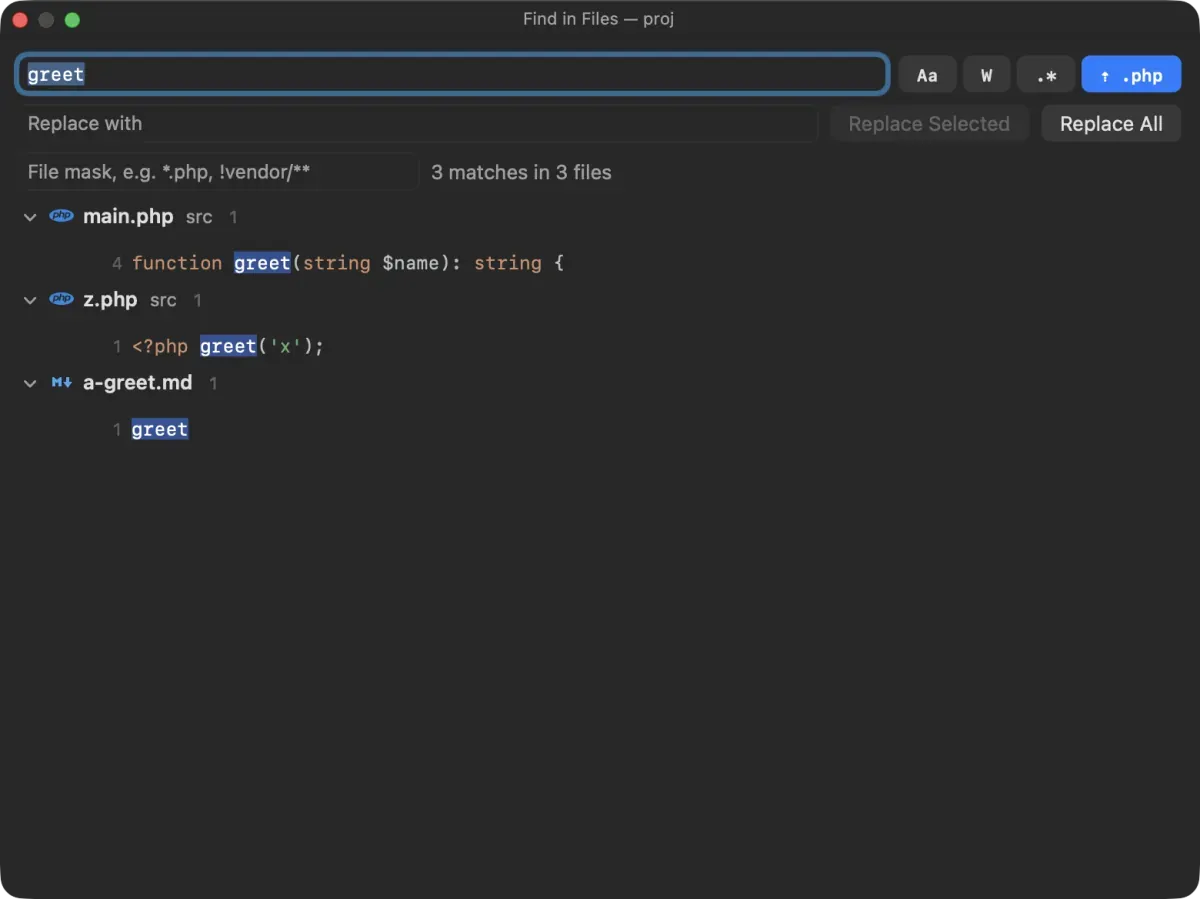
Find in Files searches the whole project as you type and lists the matches by file, coloured like the editor. Replace in Files shows what every match would become before anything is written, and never overwrites a file an agent changed since you searched.
Search
Section titled “Search”Press ⇧⌘F (Edit › Find › Find in Files…).
- It starts from your selection, or the word at the caret, in the editor; or from the text selected in the terminal.
- Results update as you type, grouped by file, with the line number and the line itself, the match highlighted.
- Click a result to open the file at that line.
- Very large result sets stop at 20,000 matches; narrow the search with a file mask.
- It searches the project folder, or what the sidebar shows when the window has no project.
The buttons next to the search field:
| Button | Does |
|---|---|
| Aa | Match case |
| W | Whole words only |
| .* | Regular expression |
| ⇡ .php | List files of the type you are editing first (on by default, remembered) |
With the type-first button on, the file you are editing comes first, then files of its type (the full compound extension first, such as blade.php, then php), then the rest.
Which files are searched
Section titled “Which files are searched”In a git repository, the files git tracks plus untracked files that are not ignored, so node_modules and build output stay out of the way. Outside a repository, Next Term skips the usual dependency and build folders. Binary files, files that are not valid UTF-8 and very large files are skipped.
File masks
Section titled “File masks”Narrow the search with a comma-separated list of masks:
| Mask | Means |
|---|---|
*.php | Files named *.php, in any folder |
src/**/*.ts | TypeScript files anywhere under src (a mask with / matches the whole path; ** spans folders) |
!vendor/** | Leave out everything under vendor |
!*.min.js | Leave out minified scripts |
A file must match one of the plain masks (if there are any) and none of the ! masks.
Replace
Section titled “Replace”Press ⇧⌘R (Edit › Find › Replace in Files…), or type in the Replace with field. To replace only in the file you are editing, use Edit › Find › Replace… (⌥⌘F) instead.
- A preview of every replacement appears in the results as you type, before anything is written. With regular expressions on, the replacement can use the captured groups as
$1,$2and so on. - Replace Selected replaces only the matches you selected in the results; Replace All asks first and gives the count (“Replace 12 matches in 4 files?”).
- ⌘Z undoes the whole replacement as one step.
- Files keep their line endings and permissions.
Agents keep working; nothing is overwritten
Section titled “Agents keep working; nothing is overwritten”Each file is read again just before it is changed. A match is replaced only if it is still on the same line with the same text. Matches on lines that you or an agent edited since the search are skipped, and Next Term tells you how many.